dream book 3D Quick Start Guide

Here is a quick guide to help you get started with your dream book 3D experience!

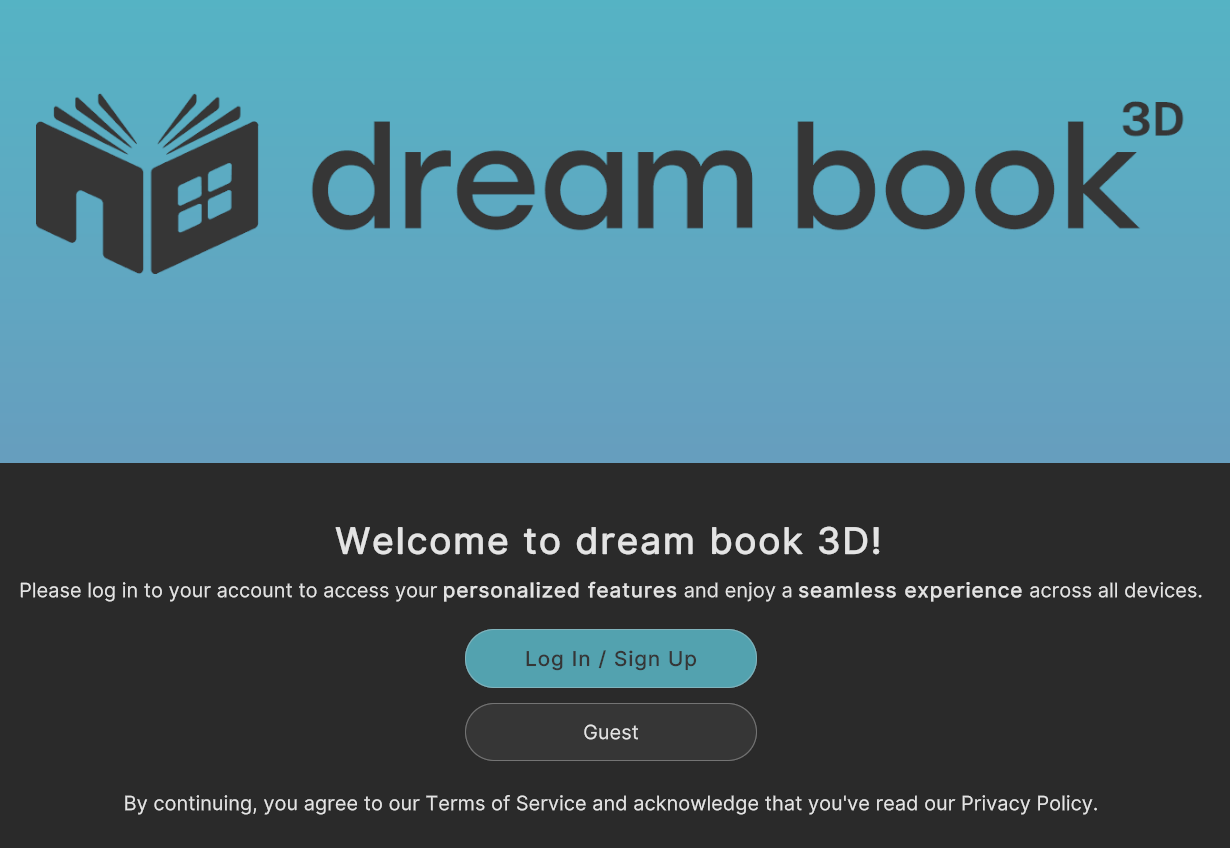
When you open the app for the first time, you can click the Guest button to immediately begin exploring the app for free.
If you Login / Sign Up for a free account, your designs and favorites will automatically save and sync to the cloud so you can open them on any device and share them with friends and family.

Login Page

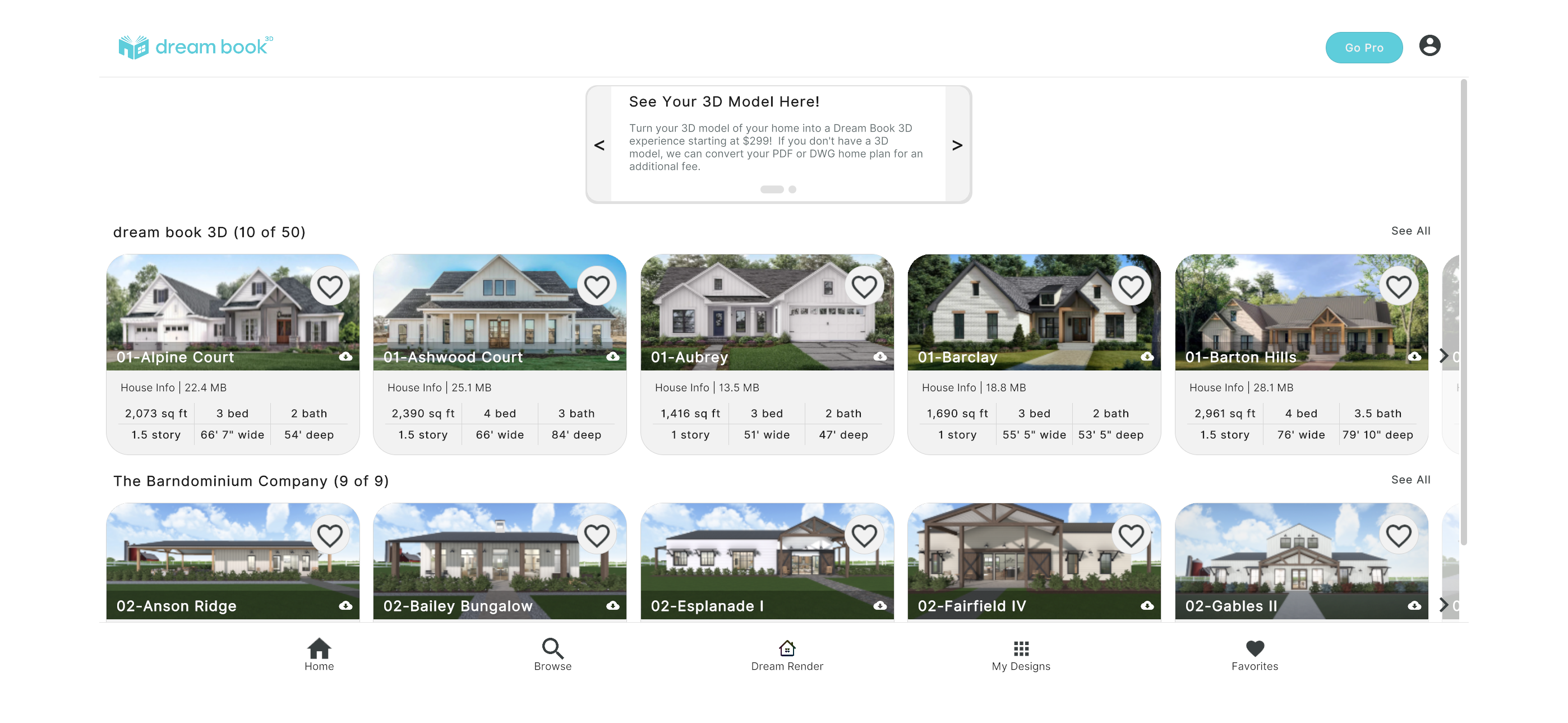
After you log in, you will see the Home Page where you can select one of our beautiful, real, home plans to explore and design.
If you have a 3D model created in Chief Architect or Archicad, you can instantly upload it here.  If you have a 3D model or a 2D plan from other software, you can find out how to have us upload it for you.

The cost for uploading or converting a 3D model starts at $299 per model.  Converting a 2D plan to a 3D model starts at $1,995 per plan.

Home Page

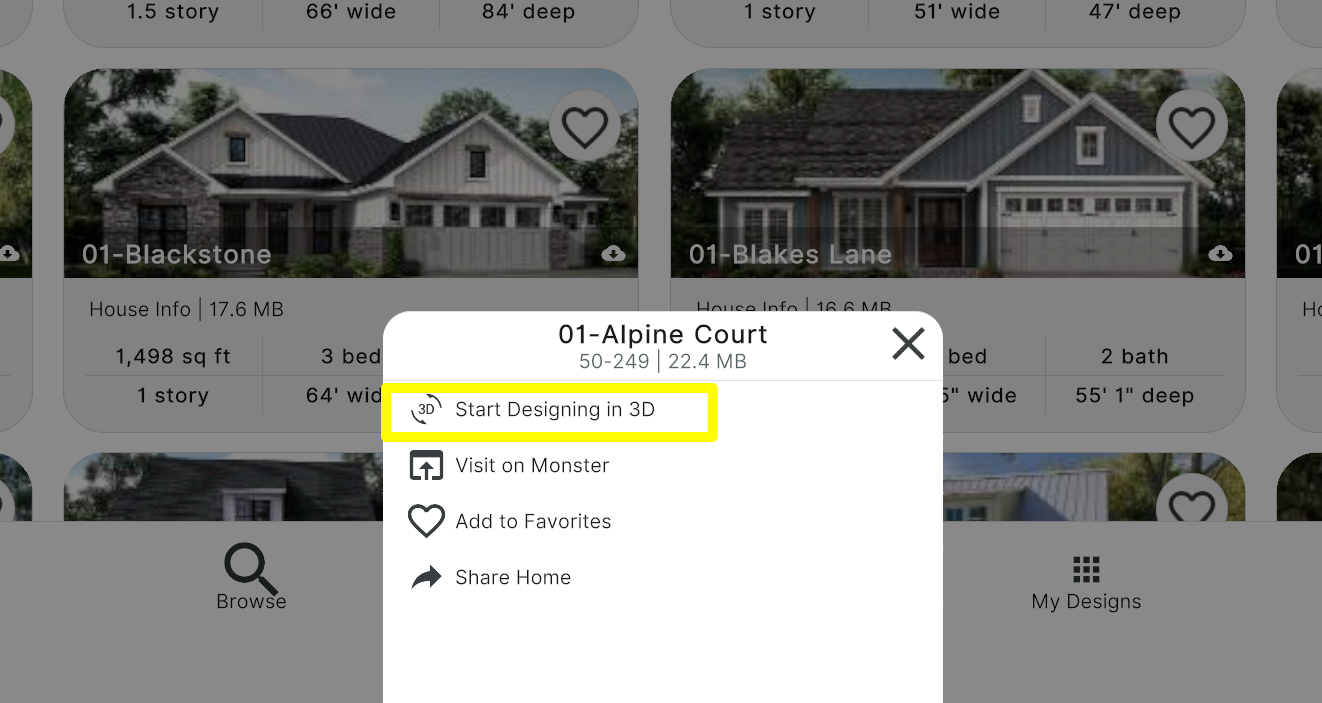
To open up a home plan, click on it, then select, “Start designing in 3D” from the pop-up menu at the bottom of the screen.

Home Page: Selecting a model to explore, design, and render
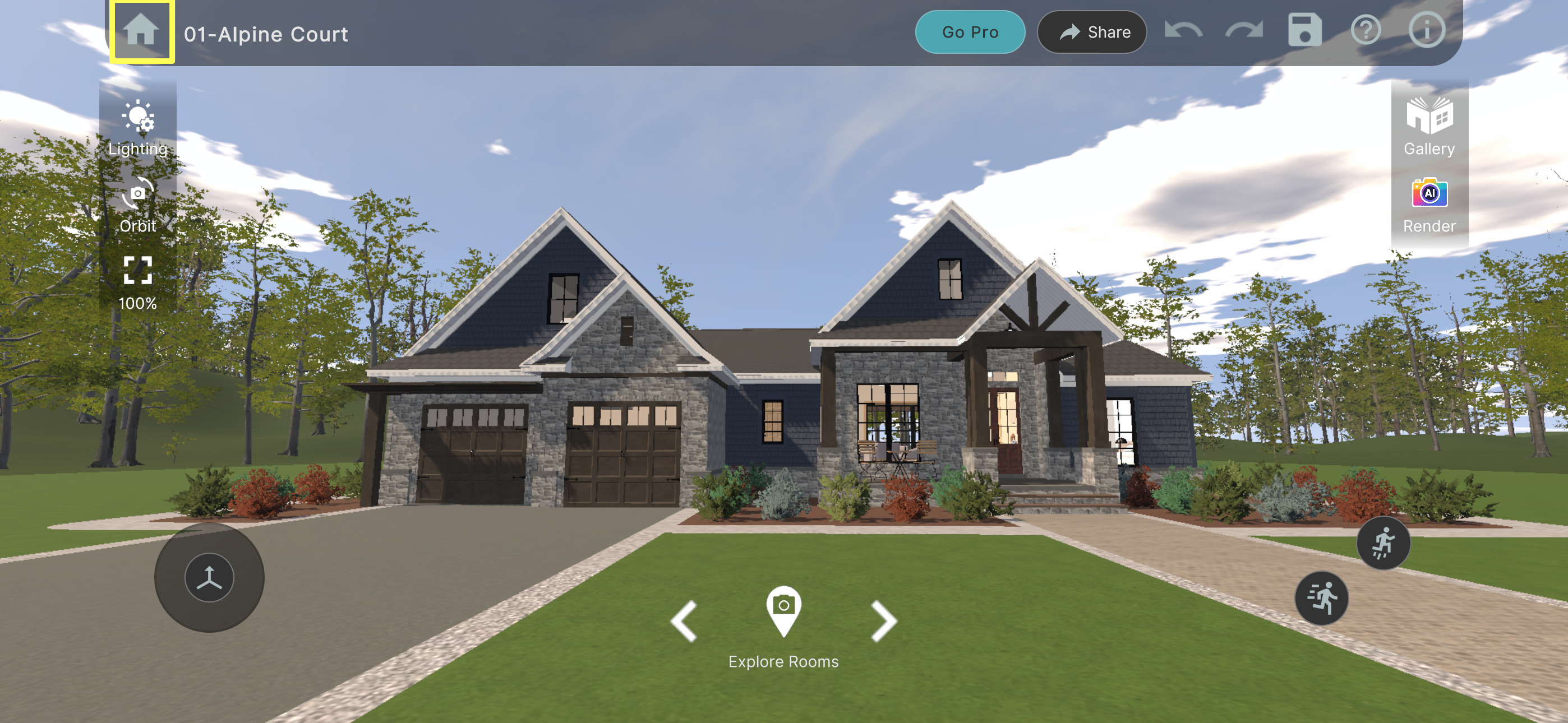
The plan you selected will be loaded into the Design Screen.
To return to the Home Page, click the home icon at the upper left of the screen.

Design Screen

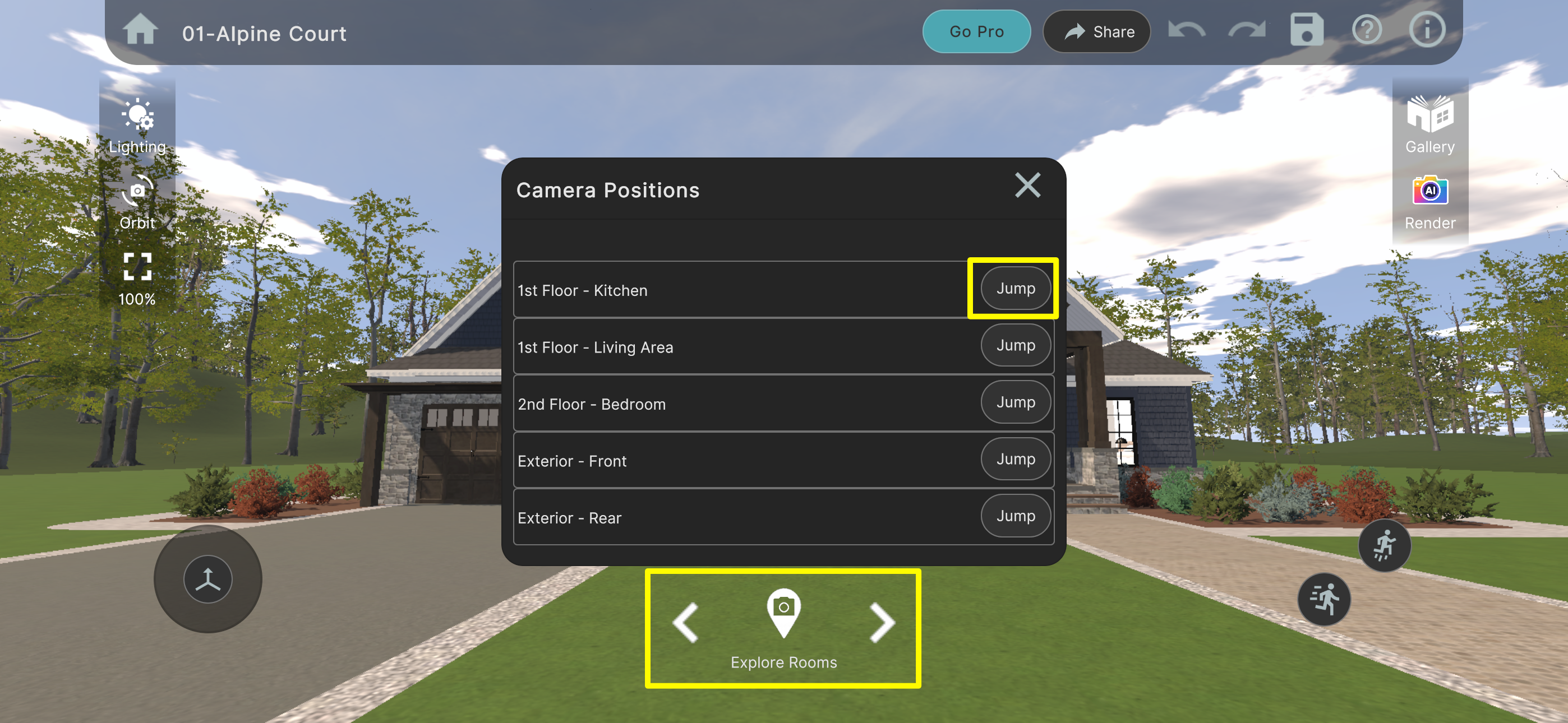
You can click the camera icon at the bottom middle of the screen to bring up a list of preset cameras within the home.  Click the “Jump” button to move to the selected camera.
You may also use the left/right arrows to take a tour of preset camera positions.

Design Screen: Using the Camera buttons to explore the 3D model
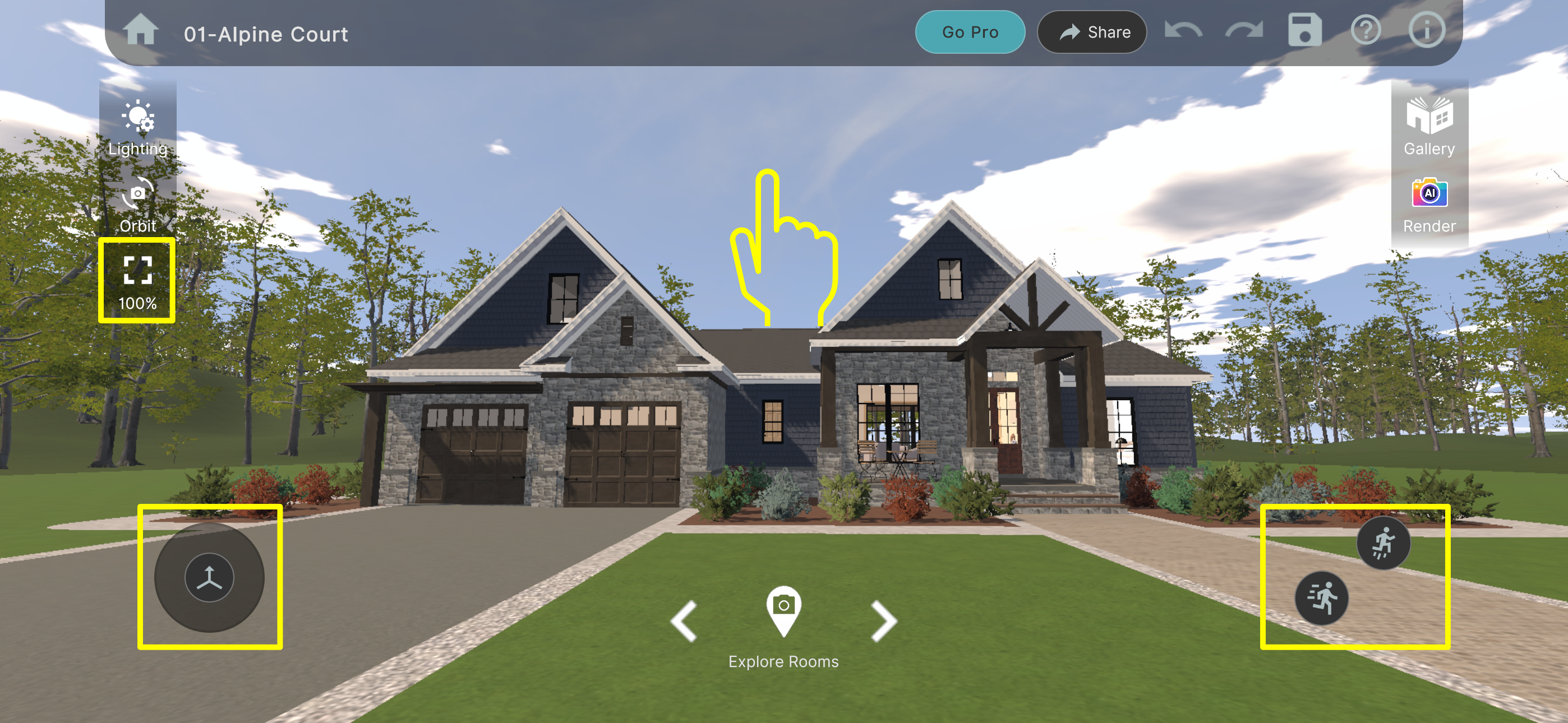
To walk around on a mobile device, gently push the joystick button at the lower left of the screen in the direction you wish to walk. Drag your finger on the screen to change the direction you are looking.
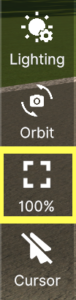
You can pinch to zoom in and zoom out like you would on a photo.  To reset the zoom, click the zoom button on the left vertical toolbar.
At the lower right of the screen are buttons to walk faster and jump.

Design Screen: How to walk around on a mobile device
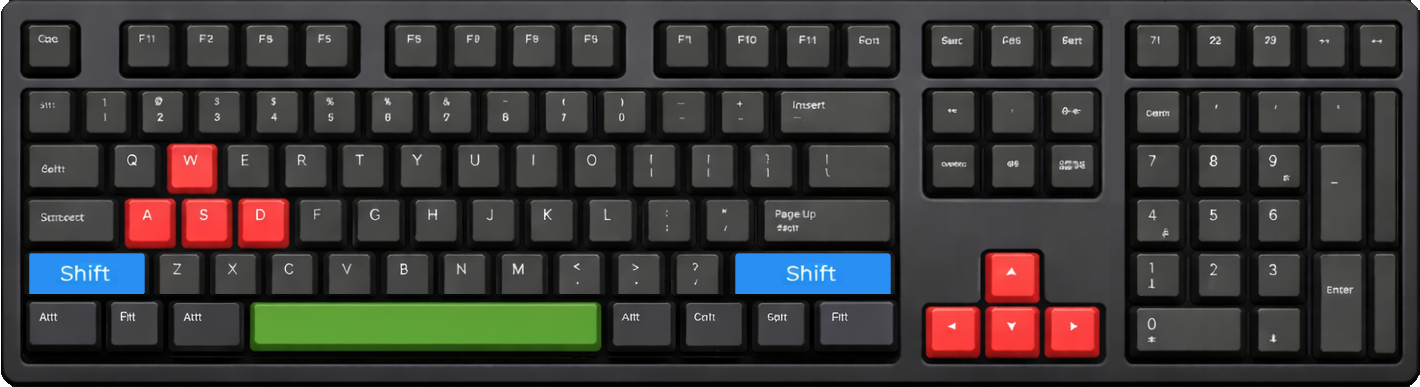
To walk around with a keyboard, use the WASD keys or arrow keys. To walk faster, hold down the shift key while you walk.  To jump, tap the spacebar.
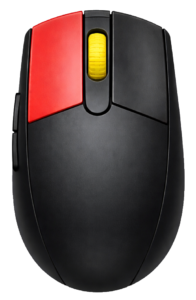
To look around, click the left mouse button and drag across the screen.  To Zoom in and out, roll the scroll wheel.  To reset the zoom, click the zoom button on the left vertical toolbar.
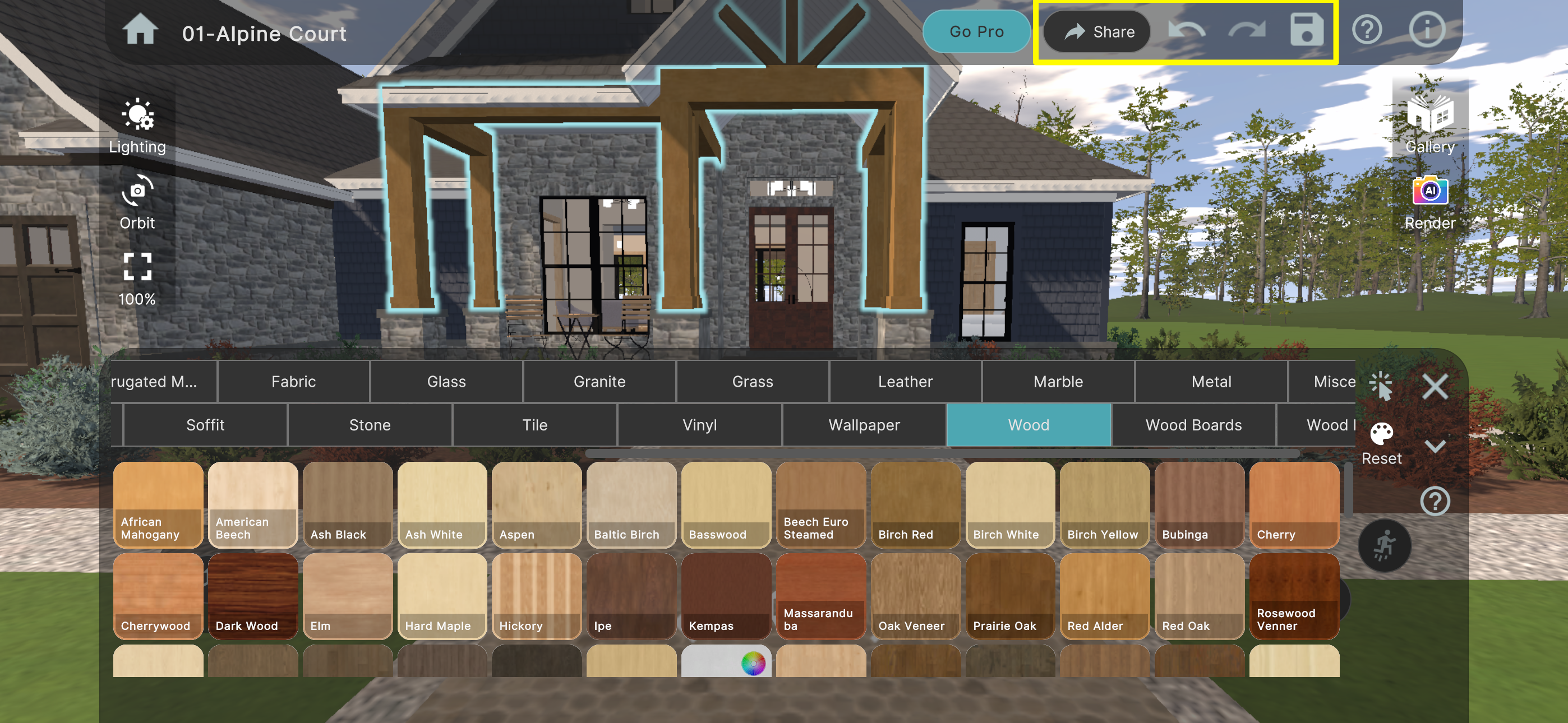
To change materials, textures, and colors, click on the surface you want to change to highlight it, then make your selection from the materials popup at the bottom of the screen.
Use the buttons on the toolbar at the top of the screen to Share, Undo, Redo, and Save your design.
Materials with a color wheel offer hundreds of color options that you can unlock with a Pro subscription.

Design Screen: Applying materials to a selection
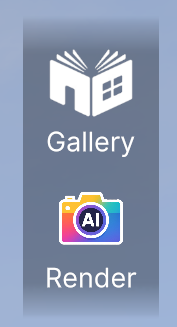
Click the Render button to create photorealistic renderings of whatever view you have selected in the design screen.
You will be prompted to purchase Dream Render credits if you do not have any.
Click the Gallery button to see all the renderings you have created for a model.
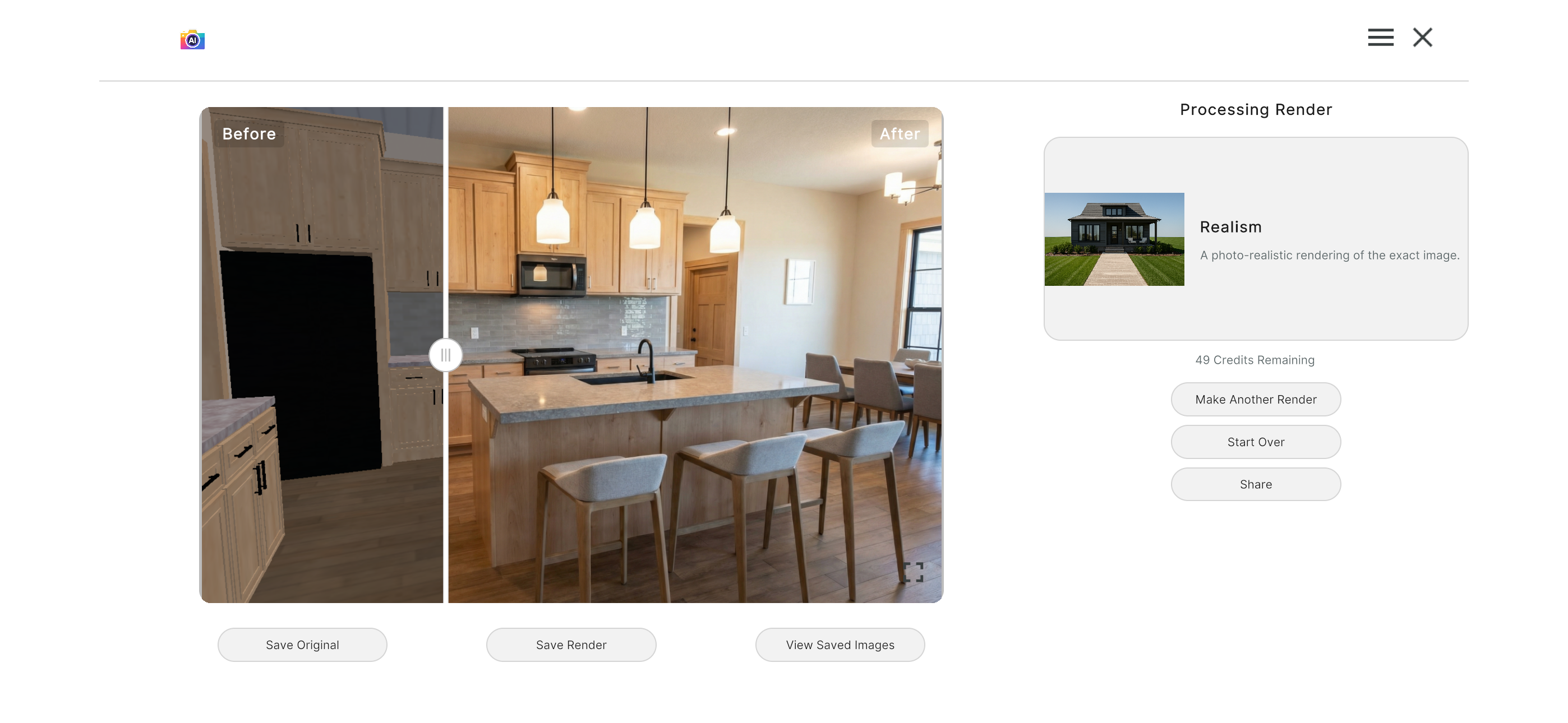
A Realism Render creates a photorealistic view of the materials, textures, and colors you selected.
Drag the slider to see the transformation from a 3D model to reality!

Realism Render: Based upon user-selected materials
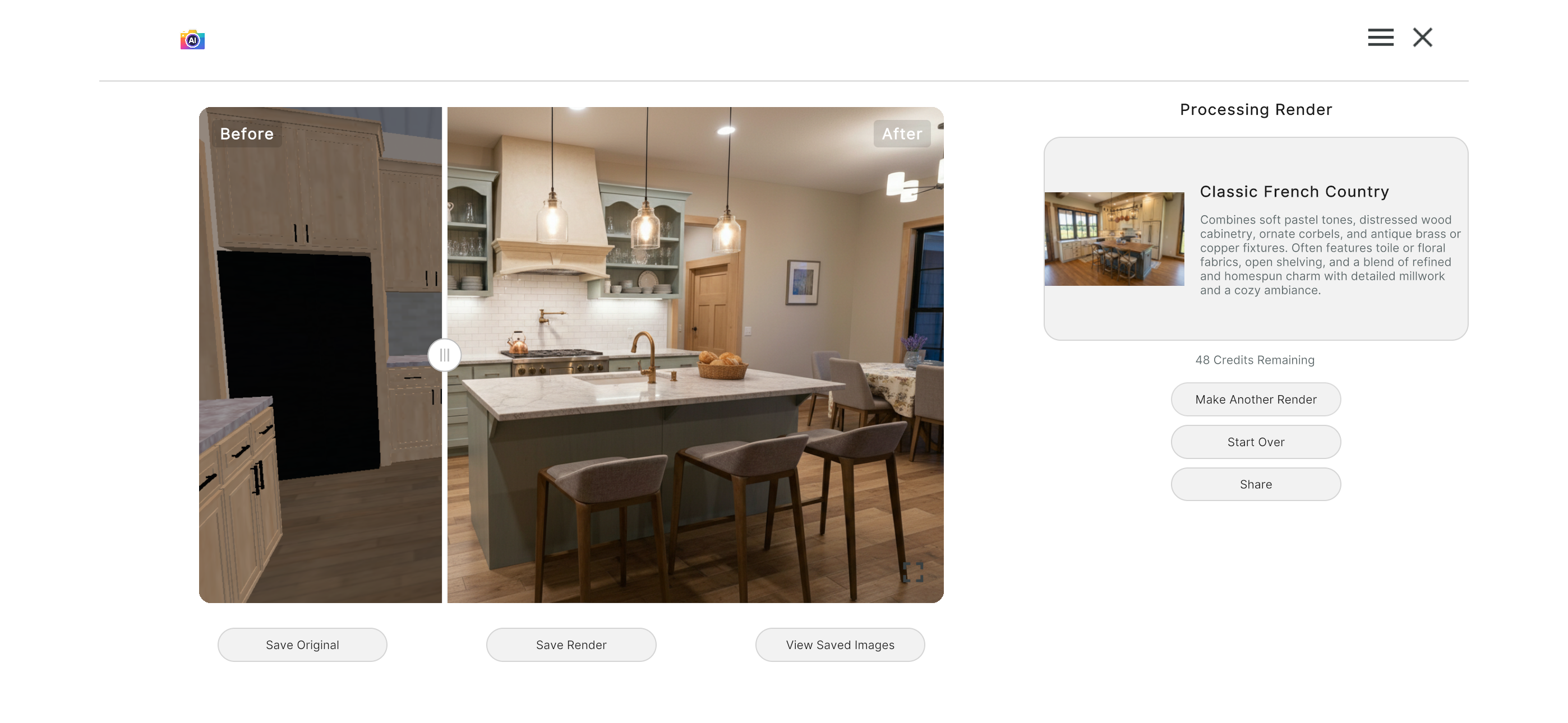
A Styles Render offers over 60 variations of today’s most popular styles applied to your home to instantly create a photorealistic render.
Drag the slider to see the transformation from a 3D model to reality!

Styles Render: Classic French Country
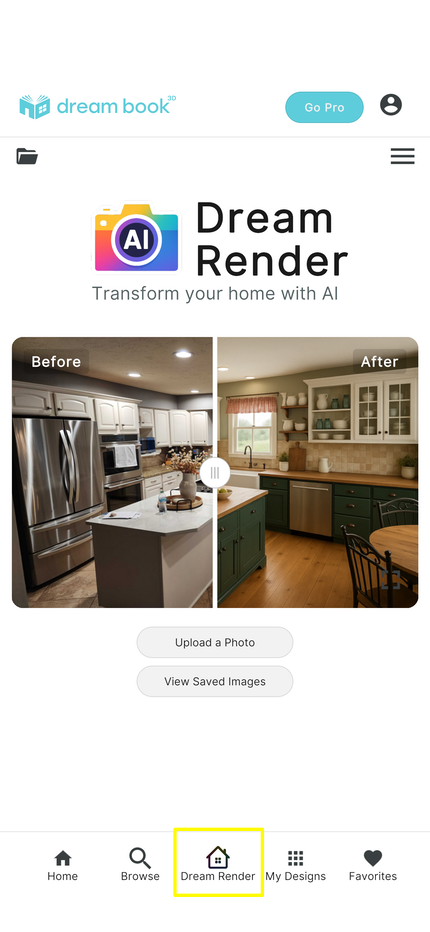
You can even try Dream Render on a photo of your current home to instantly transform into whatever style you select.
Just select the Dream Render icon at the bottom of the Home Page and follow the instructions to upload a photo from your device and select the style you want to see.

Home Screen: Dream Render

Here are some advanced tips to enhance your dream book 3D experience:

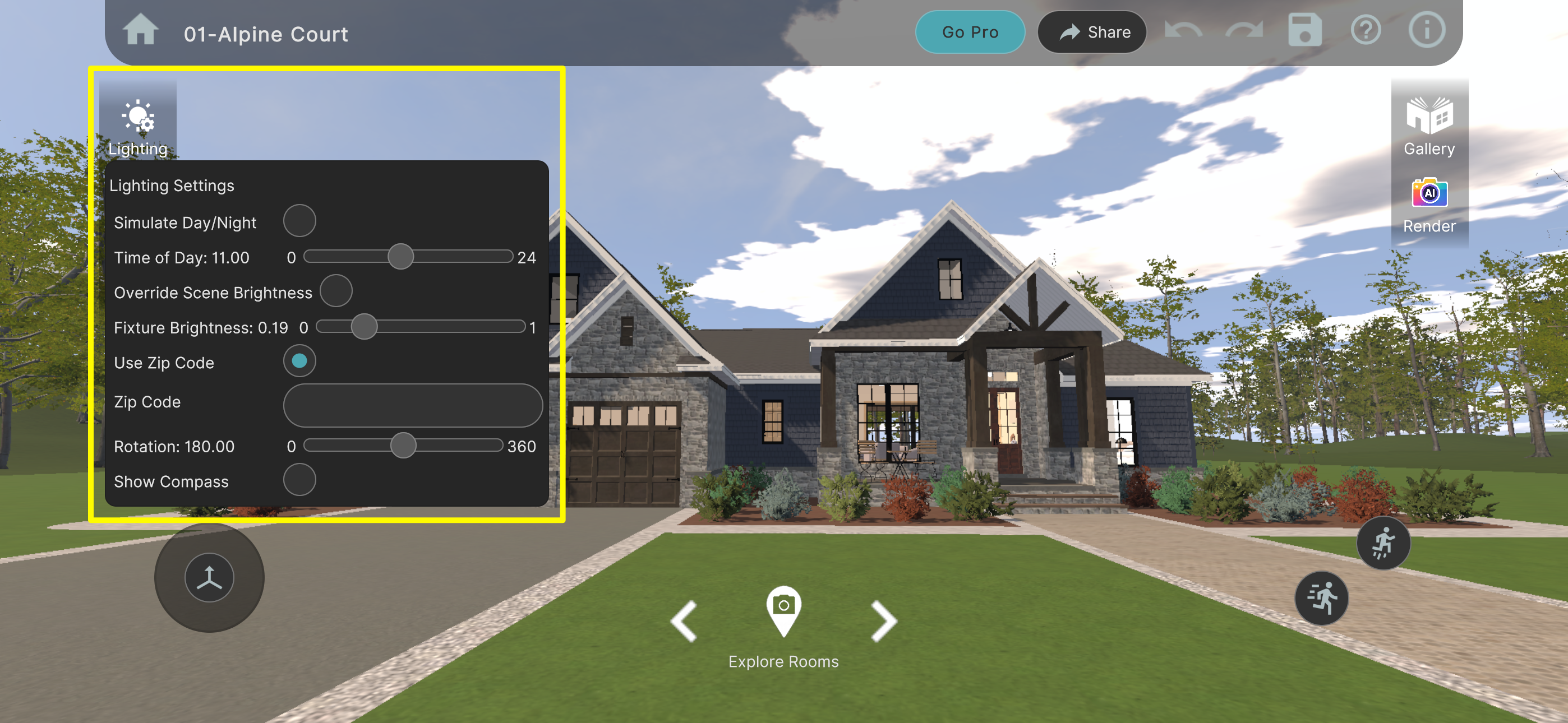
Use the Lighting menu to set zip code and the direction your home faces to see how the sun will interact with your home on your lot.
Use the Time of Day slider to move the sun across the sky from day to night.

Design Screen: Lighting Menu

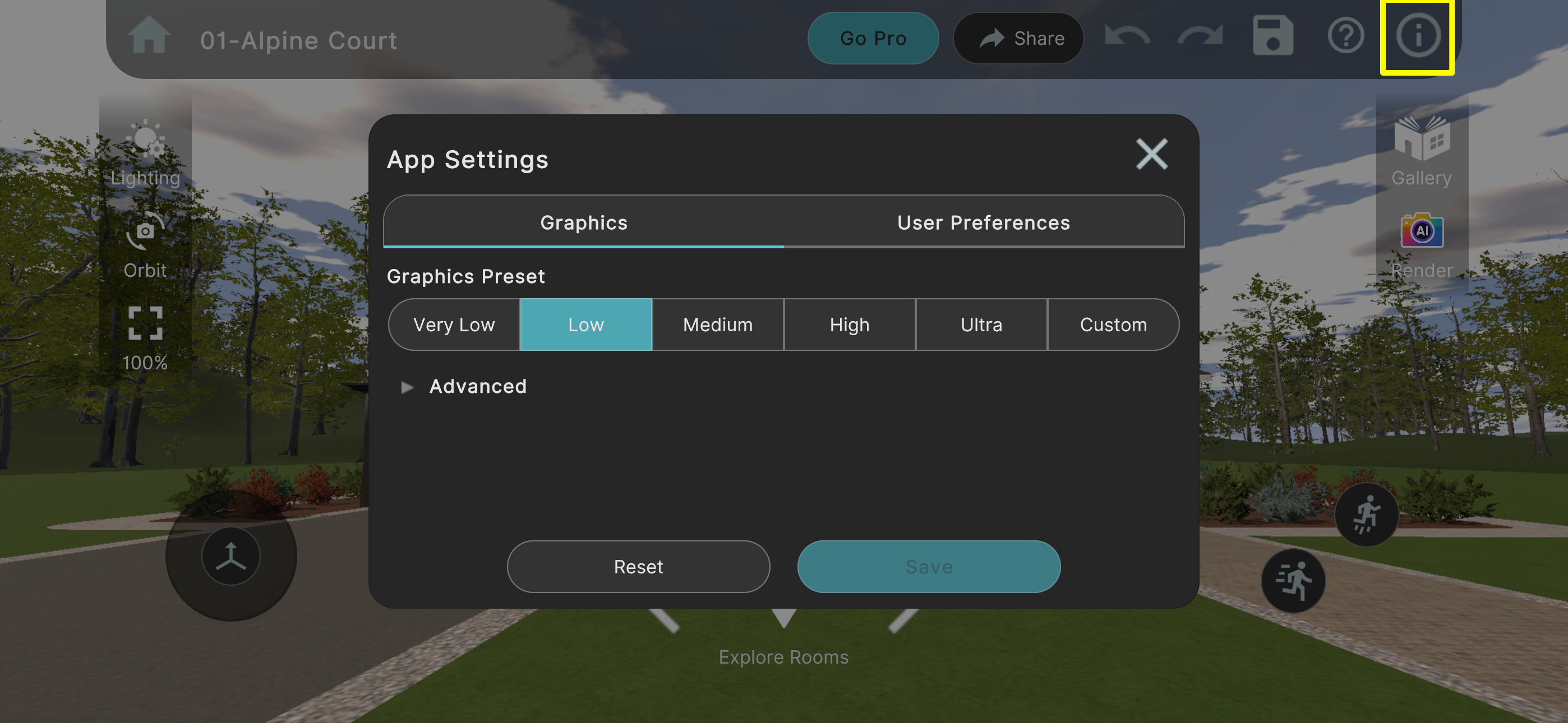
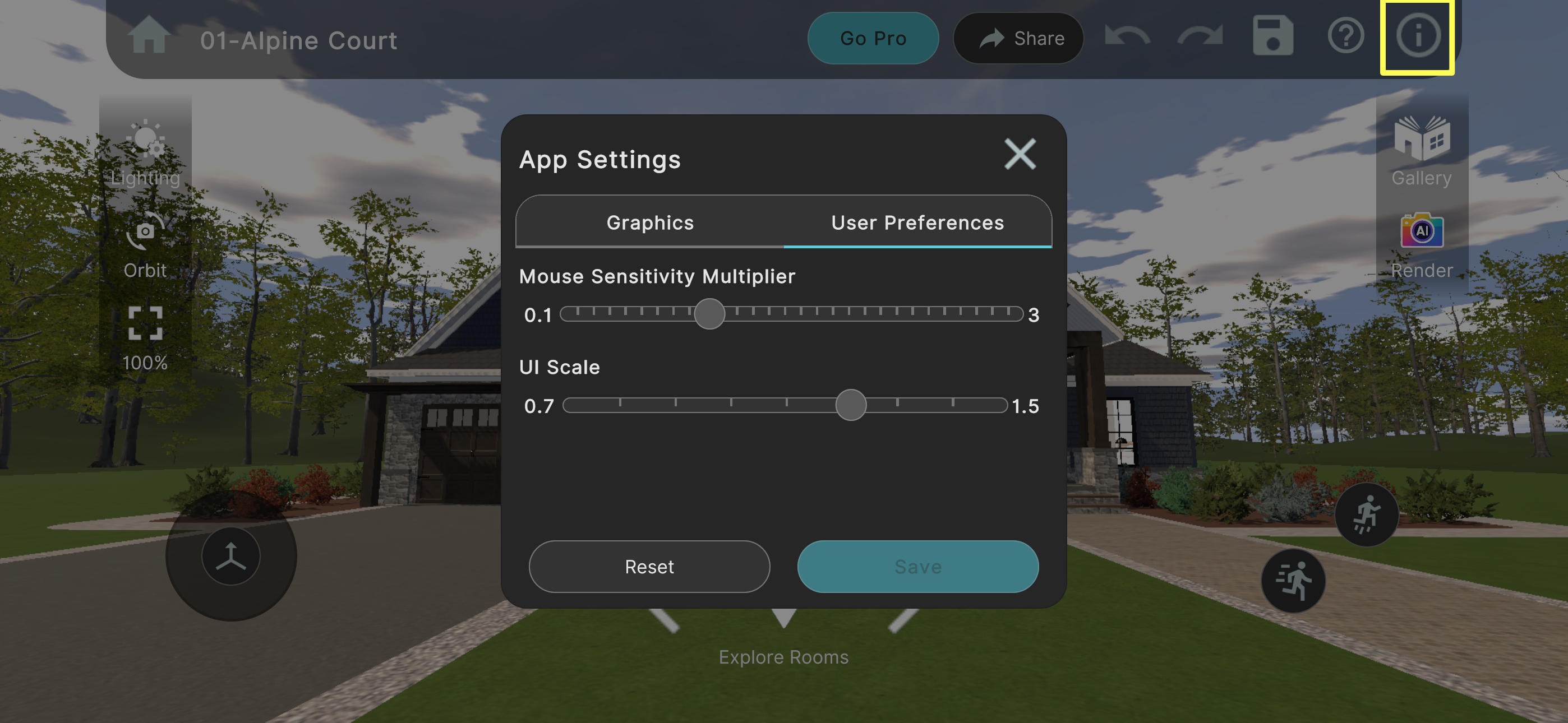
You can customize the dream book 3D experience for your device from the App Settings which can be found in the Info Menu in the top right corner of the screen on the Home Page or Design Screen.
The Graphics tab adjusts the level of detail and lighting. Most mobile devices and consumer grade laptop/desktop computers will use the Low or Medium setting.  More powerful computers can run in High or Ultra mode.
If your device seems to be running slowly, select a lower setting.

App Settings: Graphics

The User Preferences tab allows you to customize mouse sensitivity and the size of the screen elements.
For Mouse Sensitivity, drag the slider to the right to make it more sensitive and drag it to the left to make it less sensitive.
Drag the UI Scale slider to the right to make screen elements larger, and drag it to the left to make screen elements smaller.
After you save your new settings, you will have 10 seconds to review the changes you’ve made and decide whether to keep them or revert to your previous settings.

App Settings: User Preferences

Thank you for trying dream book 3D!  Have fun exploring, designing, and visualizing your dream home or remodel.

If you have any questions or comments please click here to contact us.